
Find a horse#
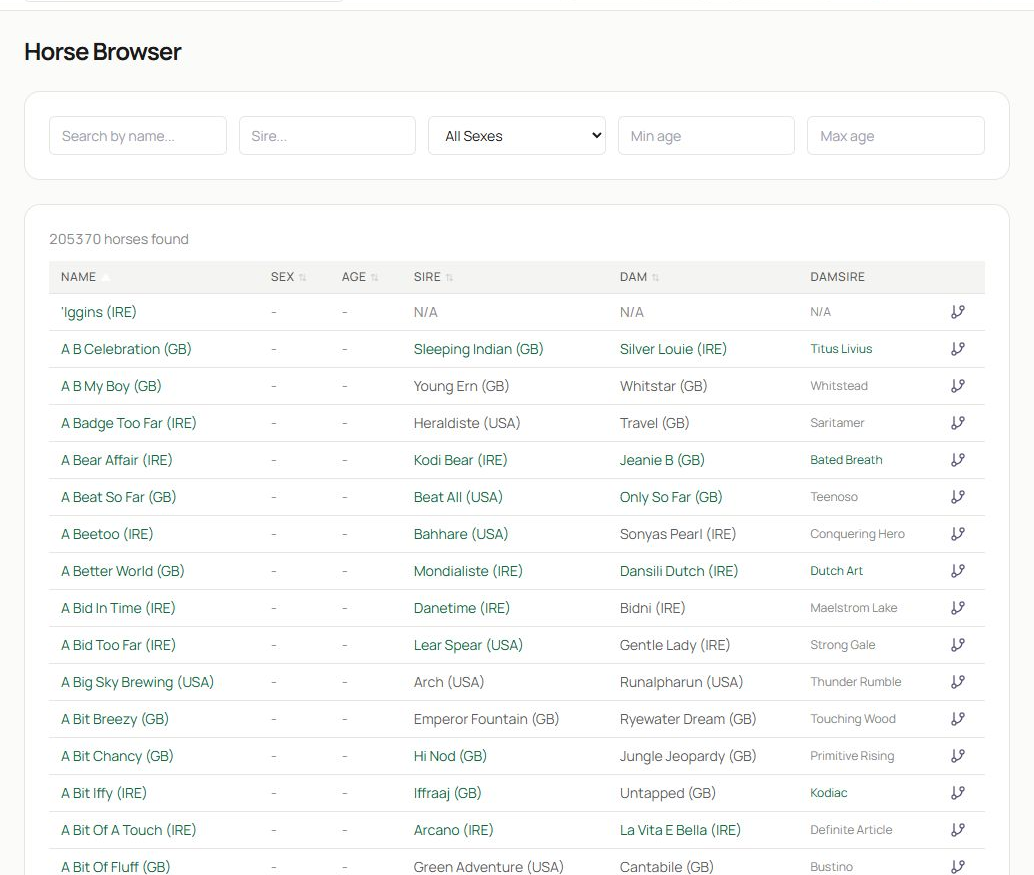
- Search by horse name or sire, then narrow the list by sex and age if needed. Partial names are useful when spelling or country suffixes differ.
- The table lists name, sex, age, sire, dam and damsire. Select a horse name to open its profile. The pedigree icon at the end of a row opens the family-tree route when your plan includes it.
Large result sets are paginated. Add a name or sire before moving through many pages. Country suffixes such as (GB), (IRE) and (USA) are part of the displayed identity and help distinguish similar names.
Read the profile overview#
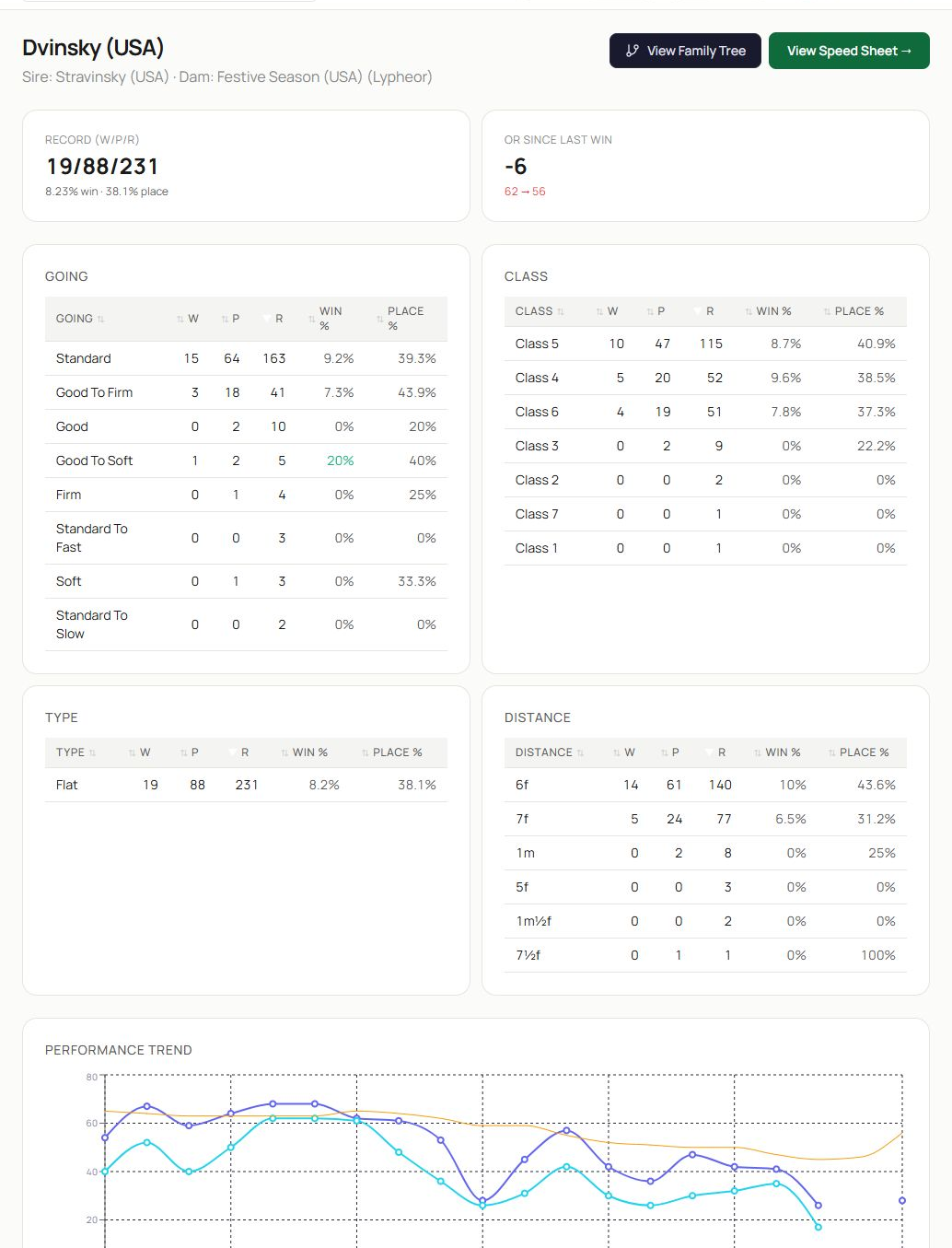
- The heading confirms the horse and its sire and dam. View Family Tree and View Speed Sheet lead to the advanced research surfaces.
- Headline tiles summarise the win/place record and other available indicators. Read both counts and percentages; percentages without a useful number of runs can mislead.
- Going and class tables show how the record changes across conditions. Other panels continue the same idea for race type and distance.
- The performance trend plots ratings through time. Use it to identify improvement, decline and volatility. Ratings appear only where the source data is available.
Inspect the race record and deeper splits#
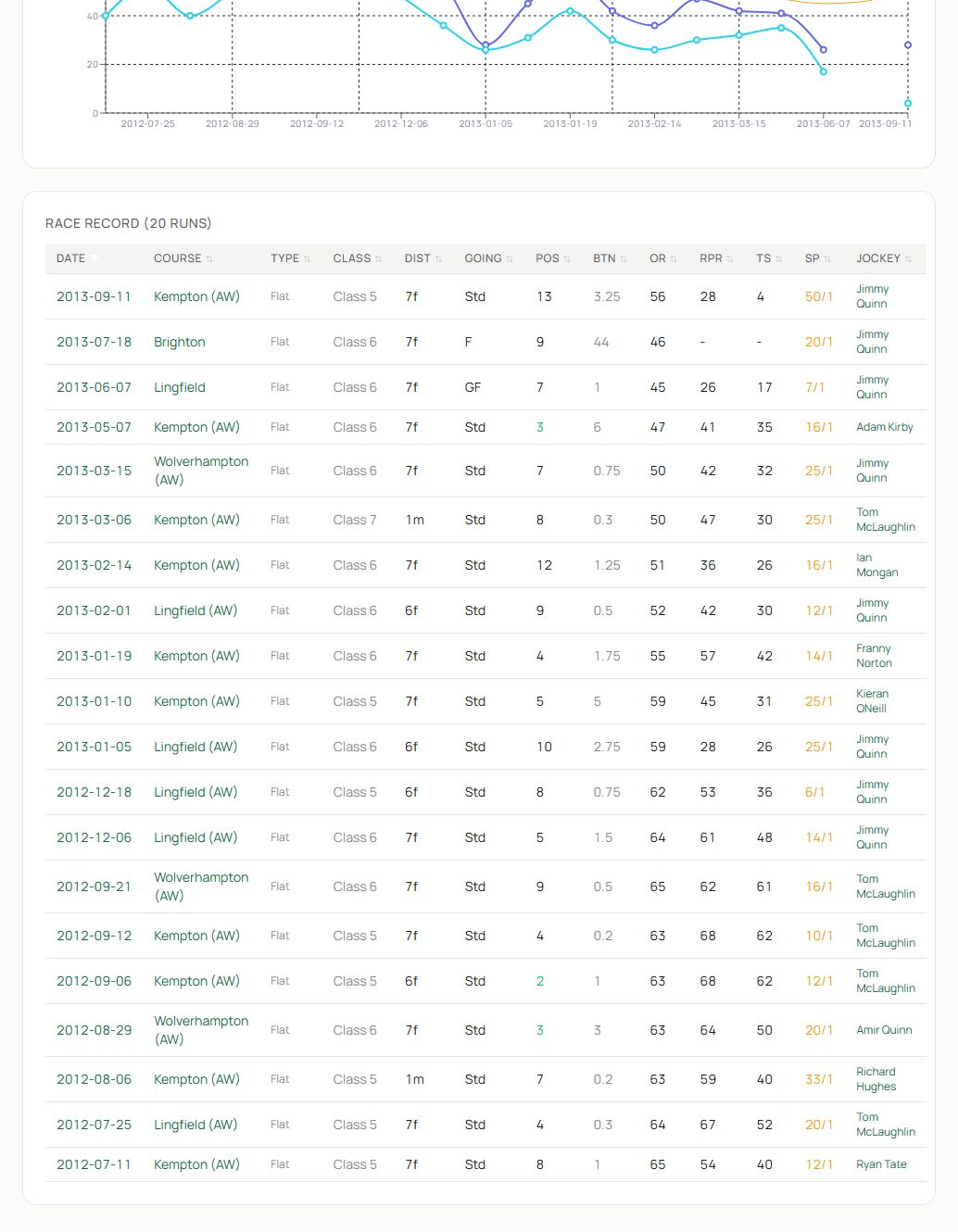
- Follow the trend into the period covered by the race record.
- The race table gives the date, course, type, class, distance, going, position, beaten distance, official rating, performance figures, price and jockey where available. Select linked races or connections for more context.
- Continue through the remaining breakdowns to test whether an apparent strength survives changes in course, trip, surface or class.
TSR and percentile columns on horse profiles require Basic or above; Free members see locked placeholders rather than rating values. Avoid selecting only a horse’s best split. A strong record may reflect easier races, a small sample or conditions that are not present today.
Move to the right next tool#
- Choose View Speed Sheet to analyse EAPF history, cycle phase, running style and the component adjustments behind each figure.
- Choose View Family Tree to explore ancestors, descendants, family traits and inbreeding.
- Use Compare from the navigation to place this horse alongside likely rivals.
- Select a trainer or jockey link when the connection may explain a recent change.
A practical horse check#
- Confirm identity and pedigree.
- Read the total record and sample size.
- Match today’s going, class, type and distance to the split tables.
- Look for a stable or changing trend rather than one isolated high point.
- Check the most recent comparable races.
- Use the advanced sheet only after the basic race context is clear.
Related guides#
Continue with Speed Figures and Speed Sheets, Horse Comparison or Family Tree and Pedigree.