
Search the race archive#
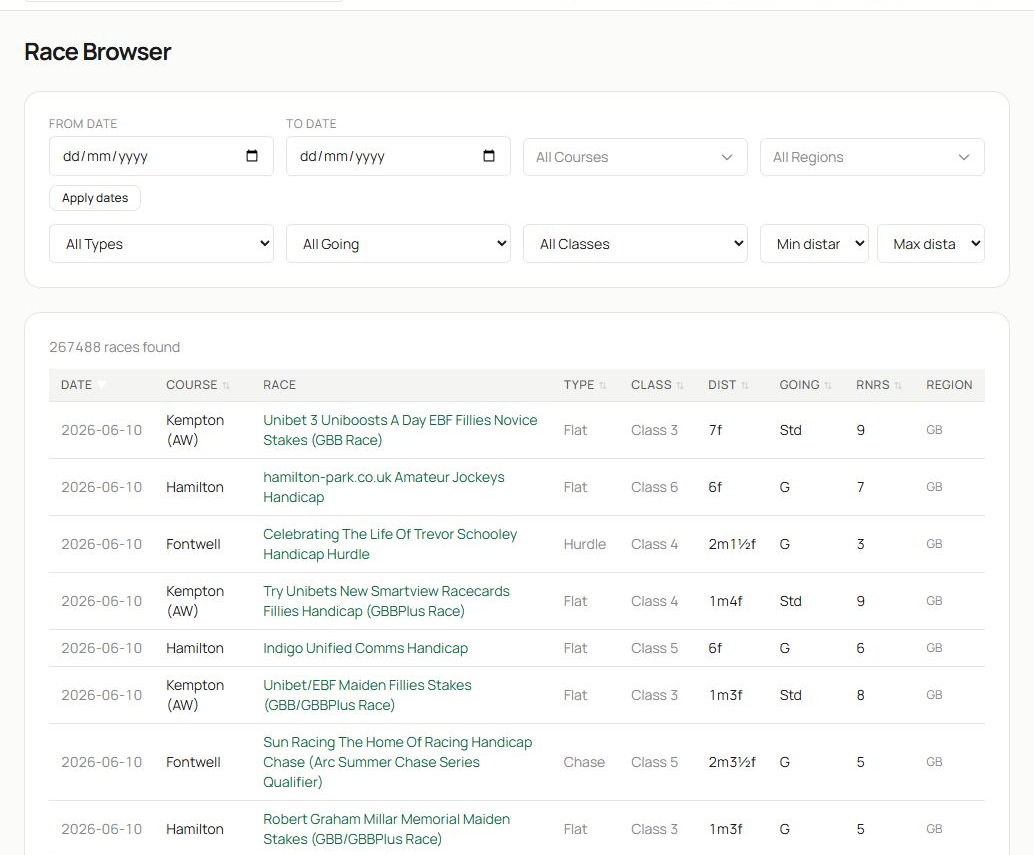
- Race Browser is the central list of available races.
- Narrow the list with start and end dates, course, region, race type, going, class and distance. Select Apply dates after changing the date range.
- The results table shows date, course, race, type, class, distance, going and runner count. Select a race title to open it. Use column headings where available to change the sort order and the page controls to move through the archive.
Start with one or two filters. If the list becomes empty, remove the most restrictive condition first. Going descriptions and race classes change between jurisdictions and codes, so a very exact combination may legitimately have no results.
Read a race detail page#
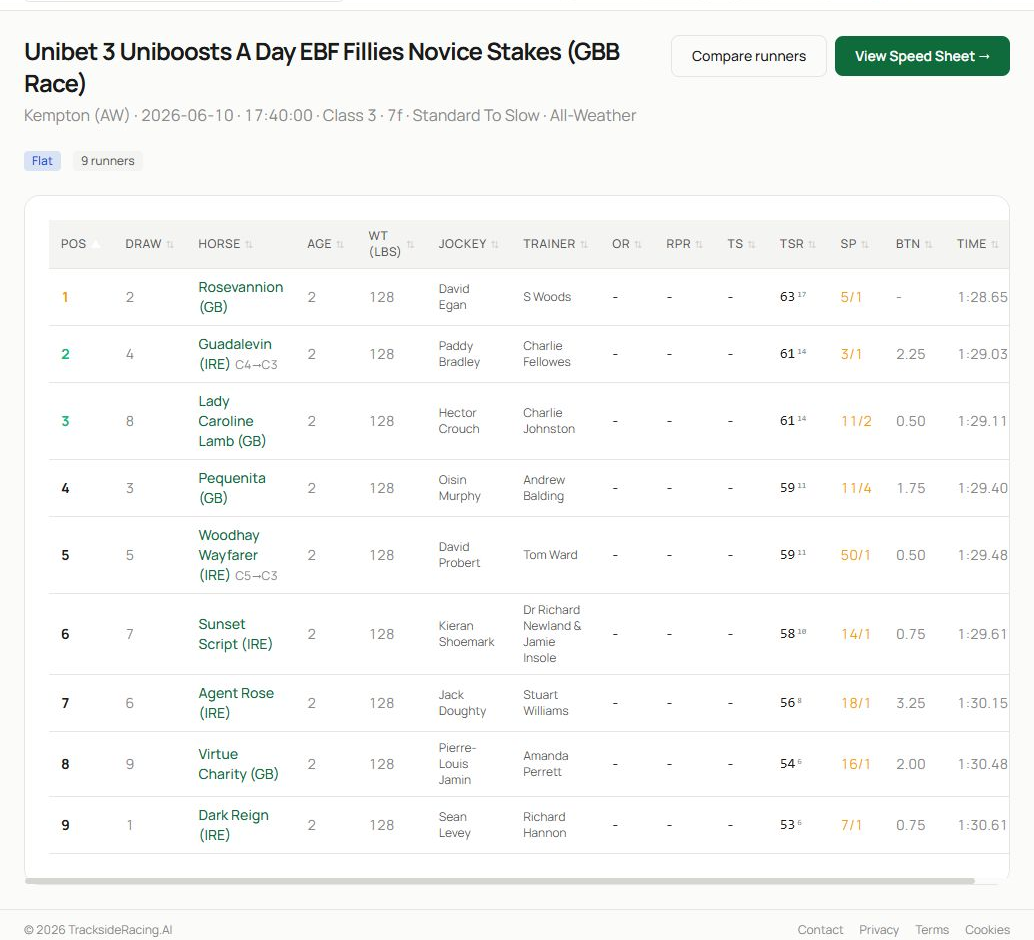
- The header confirms the race title and provides actions such as Compare runners and View Speed Sheet.
- The race summary records course, date, off time, class, type, distance, going and field size. Verify these conditions before comparing the result with another race.
- The table gives the finishing order and runner-level information, including draw, age, weight, jockey, trainer, official rating, performance figures, starting price, beaten distance and time where present.
Select a horse, jockey or trainer name to open its full analytics page. Free members can inspect TSR in the first race at each meeting; TSR is locked in the other race-result views until Basic. Class-movement indicators help show whether a runner stepped up or down relative to its previous race; confirm the underlying race conditions before treating the movement as meaningful.
Open the race speed sheet#
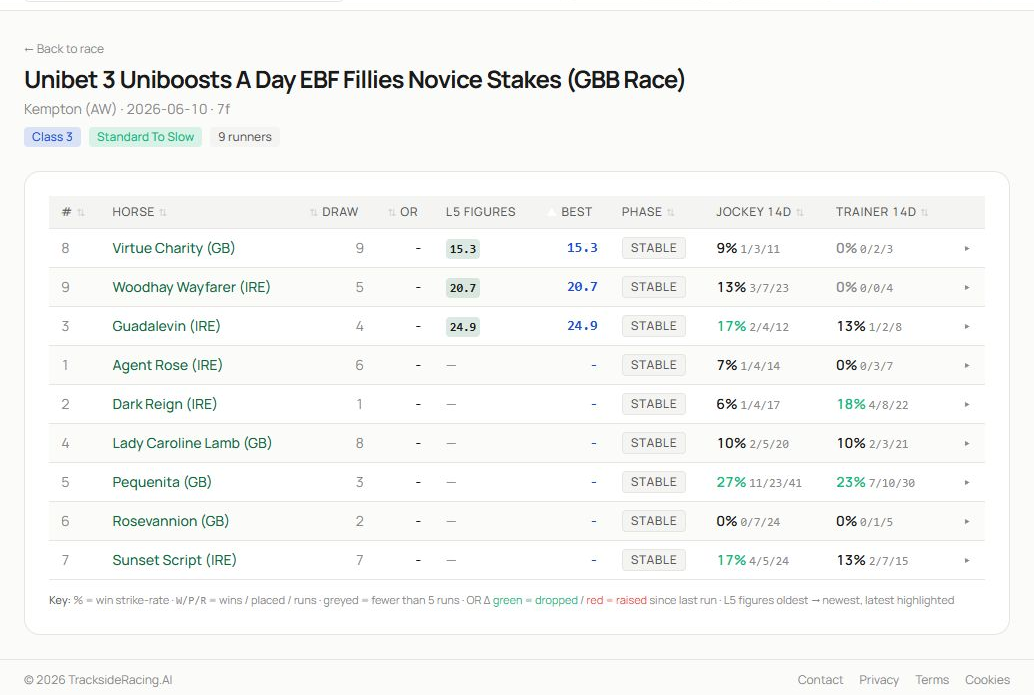
- Use Back to race to return without repeating the search.
- The sheet identifies class, surface and field size, then brings together recent EAPF figures, career best, cycle phase, jockey form and trainer form.
- Compare runners horizontally. Recent figures are ordered from newest backwards; the key beneath the table explains running-style abbreviations, win-rate context and EAPF colour movement.
EAPF is lower-is-better. A horse with a low best figure but weaker recent figures may not currently be at that level. Combine the numbers with cycle phase, conditions and sample size.
Recreate a comparable-race study#
- Filter Race Browser to the course, race type and a suitable distance band.
- Add class and going only if the initial result set is large enough.
- Open several races in separate tabs.
- Compare pace, draw, winning profile and figure standards.
- Record recurring conditions rather than relying on a single race.
Related guides#
Use Today’s Card for the current day, Course Analyser for course-wide patterns and Speed Figures and Speed Sheets for a detailed explanation of the figure scales.